Revenue/Occupancy by Guest Type/Market Segment
The Revenue/Occupancy by Guest Type/Market Segment report allows users to view a list of occupied and committed room counts, actual and projected room revenue, average daily rate, and number of guests for a selected date, as well as data by month-to-month and year-to-date per guest type and market segment. As a property manager, user can use this statistical information to analyze the property's occupancy percentages month-over-month and year-over-year.
Users can include or exclude out-of-order rooms while calculating the Occupancy % by using the Exclude OOO Rooms checkbox in the Revenue by Market Segment report. This option is available only when using Dynamic Reports (Report ➜ Dynamic Report ➜ Revenue/Forecasting ➜ Revenue by Market Segment).
Perform the following steps to generate the report:
Navigate to Reports ➜ All Reports ➜ Revenue/Occupancy by Guest Type/Market Segment (under Revenue/Forecasting).
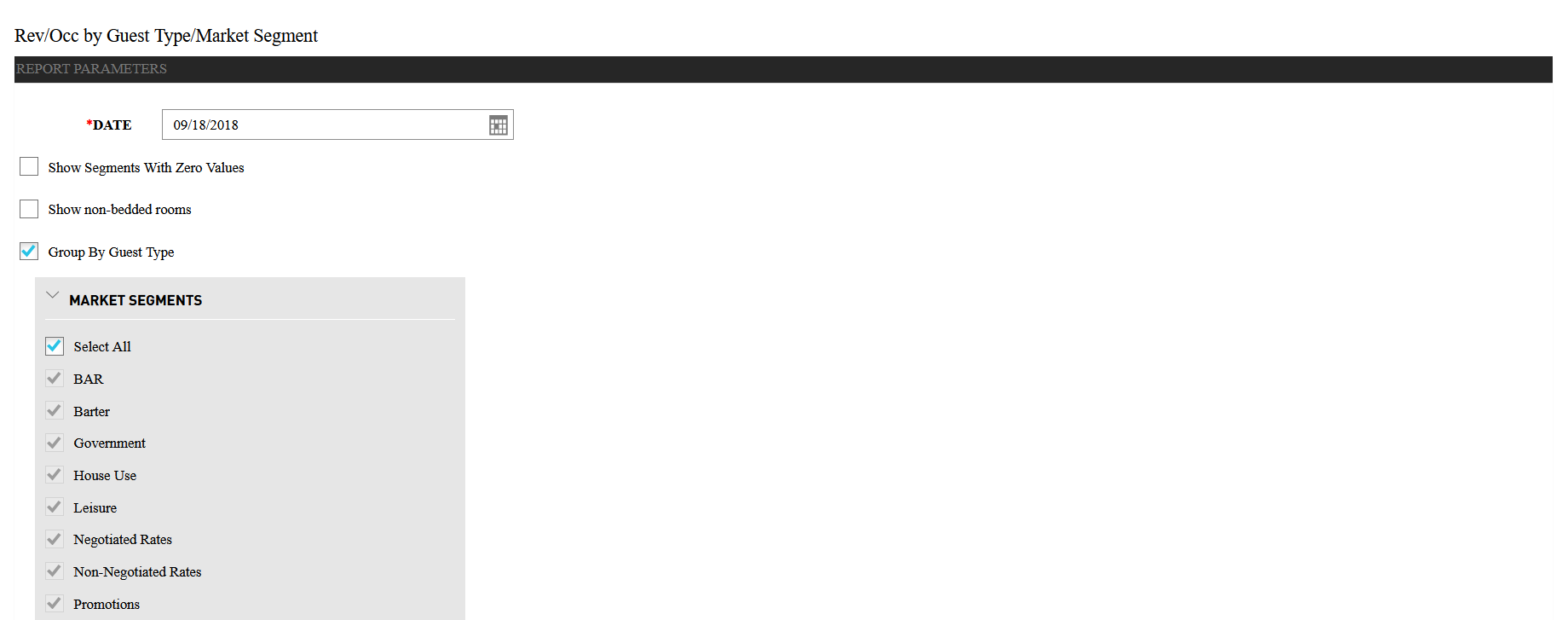
Select a date from the calendar to generate dates for the report.
Select the Show Segments with Zero Values checkbox to include segments with zero balances on the report. If the checkbox is selected, Segments with Zero Values Included appears in the header of the report.
Select the Show non-bedded rooms checkbox to include non-bedded rooms in the report.
Select Group By Guest Type checkbox to include grouping by guest type in the report.
Click Generate. The report with the selected data appears.
Click Print to send a copy of the report to the printer.
Sample Report
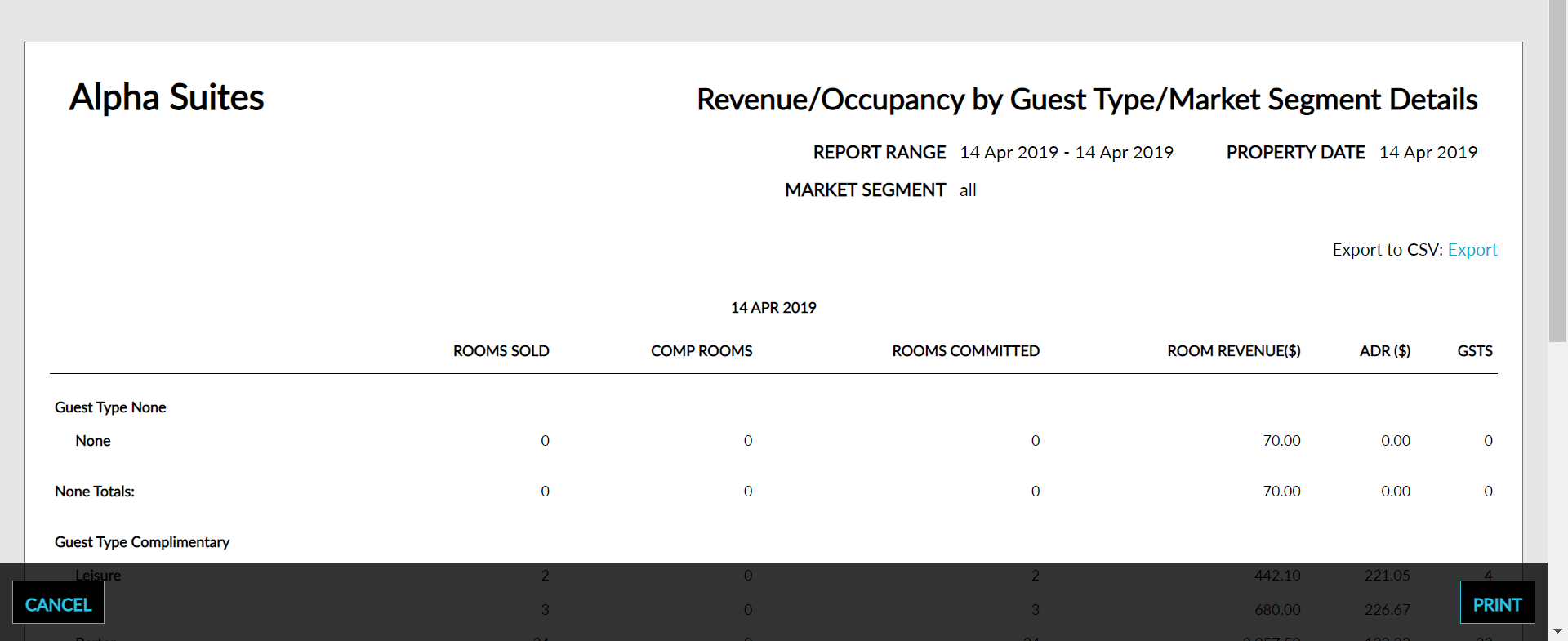
Report Parameters
This report displays the following parameters:
|
Field |
Description |
|---|---|
|
Rooms Sold |
The total sum of rooms with associated reservations. |
|
Comp Rooms |
The total number of reservations for the selected date that have a comp room rate. |
|
Rooms Committed |
The total sum of rooms sold and comped. |
|
Room Revenue |
The sum of room postings for the selected date. |
|
ADR |
The average daily rate based on the amount of room revenue for the selected date and rooms committed. |
|
GSTS# |
The total number of guests accounted for on the selected date. |
Click the question mark icon in the top right corner of the dynamic report section to view the necessary information relevant to the report.